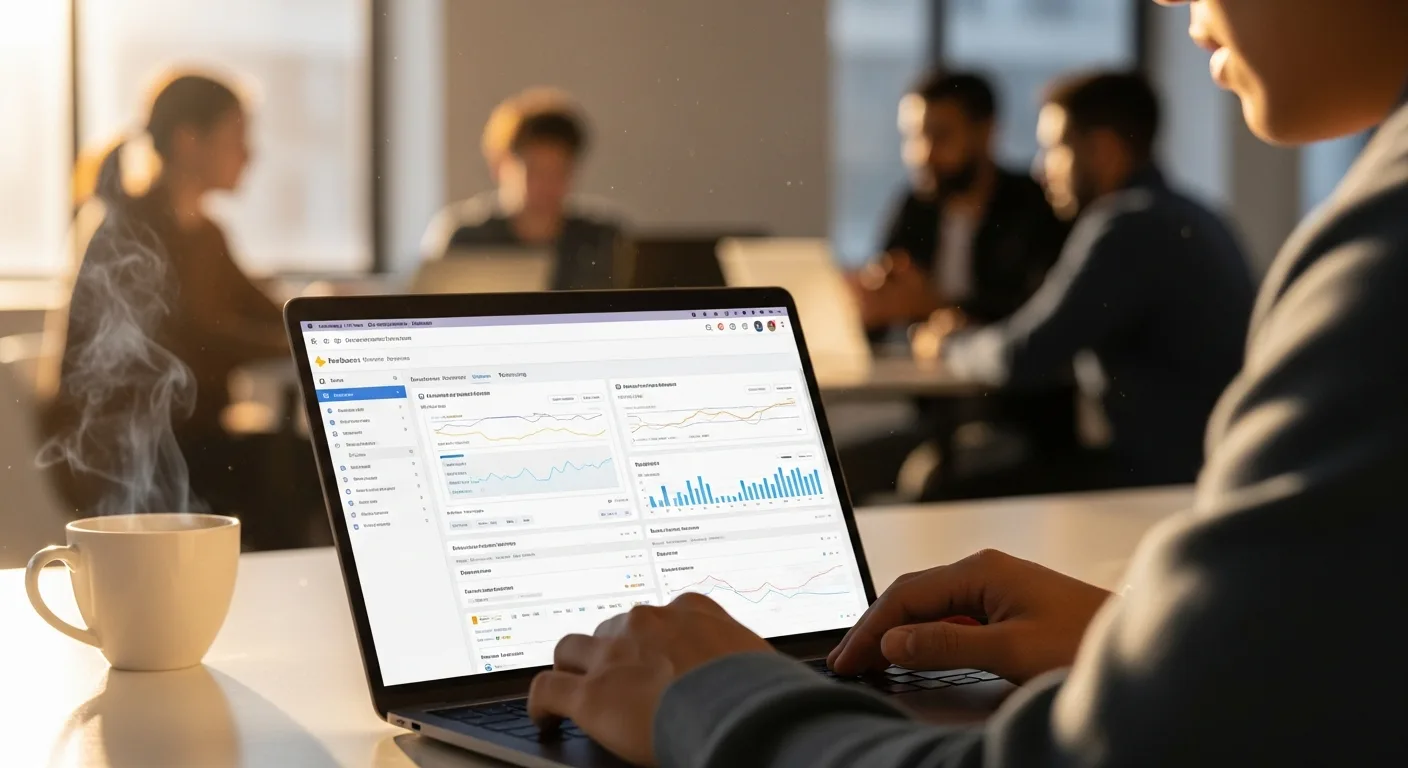
The Ultimate Guide to Firebase Performance Monitoring: Boost Your App’s Speed Today
Is your app feeling sluggish? Are users complaining about slow load times and frustrating delays? Firebase performance monitoring can be the key to unlocking a faster, more responsive user experience. This comprehensive guide will show you how to leverage Firebase to identify and resolve performance bottlenecks, ultimately boosting your app speed. Ready to transform your app’s performance?
Understanding Firebase Performance Monitoring for Android and iOS
Firebase Performance Monitoring, a service within the broader Firebase suite, is designed to give you insights into the performance characteristics of your Android and iOS apps. It helps you understand where your app is spending its time, allowing you to pinpoint areas that need optimization. Unlike simple crash reporting, Performance Monitoring provides a nuanced view of your app’s behavior under real-world conditions.
Think of it as a doctor conducting a thorough check-up on your app. Instead of just treating symptoms, it helps you diagnose the underlying causes of performance issues. This includes metrics like app start time, network request latency, screen rendering duration, and custom traces that you define.
By default, Firebase automatically collects data on the following:
- App Start Time: The time it takes for your app to launch.
- Network Requests: The latency and success rate of network calls made by your app.
- App in Background: Period app spends in the background.
- Screen Rendering: The time it takes to render individual screens in your app.
You can also define custom traces to measure specific parts of your code, such as the time it takes to perform a complex calculation or load data from a database. This flexibility allows you to tailor the monitoring to your app’s unique needs.
From my experience working with several mobile development teams, the biggest gains often come from focusing on network request optimization. Identifying and addressing slow API calls can dramatically improve the perceived speed of your app.
Setting Up Firebase Performance Monitoring in Your App
Integrating Firebase Performance Monitoring into your Android or iOS app is a straightforward process. Here’s a step-by-step guide:
- Create a Firebase Project: If you don’t already have one, create a new project in the Firebase console.
- Register Your App: Add your Android or iOS app to the Firebase project. You’ll need your app’s package name (for Android) or bundle identifier (for iOS).
- Add the Firebase SDK: Include the Firebase SDK in your app’s dependencies. For Android, add the following to your `build.gradle` file:
“`gradle
dependencies {
implementation platform(‘com.google.firebase:firebase-bom:33.0.0’)
implementation ‘com.google.firebase:firebase-perf’
}
“`
For iOS, use Swift Package Manager or CocoaPods to install the Firebase SDK.
- Initialize Firebase: Initialize Firebase in your app’s code. For Android, this is typically done in your `Application` class. For iOS, initialize Firebase in your `AppDelegate` class.
- Enable Performance Monitoring: In the Firebase console, navigate to the Performance Monitoring dashboard and enable the service.
- Run Your App: After completing these steps, run your app. Firebase will automatically start collecting performance data.
Once you’ve completed these steps, Firebase will begin collecting data automatically. It might take a few minutes for the data to appear in the Firebase console. You can then use the dashboard to analyze your app’s performance.
Analyzing Performance Data and Identifying Bottlenecks
Once Firebase Performance Monitoring is set up, the real work begins: analyzing the data and identifying performance bottlenecks. The Firebase console provides a wealth of information, but it’s important to know how to interpret it effectively.
Start by looking at the overview dashboard. This gives you a high-level view of your app’s performance, including key metrics like app start time, network request latency, and screen rendering duration. Pay attention to any metrics that are significantly higher than average or that show a sudden spike.
Next, drill down into the individual metrics to get more detailed information. For example, if you see that your app start time is high, you can investigate which parts of your code are contributing to the delay. Firebase provides detailed breakdowns of each metric, allowing you to pinpoint the exact source of the problem.
For network requests, focus on identifying slow or failing API calls. Firebase shows you the latency, success rate, and payload size of each request. You can also filter the data by device type, operating system version, and geographic location.
Custom traces are particularly useful for measuring the performance of specific parts of your code. For example, you can use a custom trace to measure the time it takes to load data from a database or perform a complex calculation. This allows you to identify performance bottlenecks within your own code.
When analyzing performance data, consider the following factors:
- Device Type: Are performance issues more prevalent on older or less powerful devices?
- Operating System Version: Are certain OS versions more prone to performance problems?
- Network Conditions: Are performance issues worse when users are on slow or unreliable networks?
- User Demographics: Are performance issues concentrated in specific geographic regions?
By considering these factors, you can gain a more complete understanding of your app’s performance and identify the root causes of any issues.
Optimizing App Speed Based on Firebase Insights
After identifying performance bottlenecks using Firebase, the next step is to optimize your app speed. The specific optimization techniques you use will depend on the nature of the bottleneck, but here are some common strategies:
- Optimize Network Requests: Reduce the number of network requests your app makes, and minimize the size of the data being transferred. Use caching to avoid making redundant requests. Consider using techniques like request batching and data compression to further reduce network traffic.
- Improve Database Queries: Optimize your database queries to retrieve data more efficiently. Use indexes to speed up queries, and avoid retrieving unnecessary data. Consider using a caching layer to reduce the load on your database.
- Optimize Image Loading: Use optimized image formats (like WebP) and compress images to reduce their file size. Use lazy loading to load images only when they are visible on the screen.
- Improve Code Efficiency: Review your code for inefficient algorithms or data structures. Use profiling tools to identify areas where your code is spending the most time. Consider using asynchronous programming to avoid blocking the main thread.
- Reduce App Size: A smaller app downloads and installs faster. Remove unused resources, optimize your code, and use code shrinking techniques like ProGuard (for Android) or bitcode stripping (for iOS).
- Use Content Delivery Networks (CDNs): For static assets like images and videos, use a CDN to distribute the content to users from servers located closer to them. This can significantly reduce latency and improve load times.
Remember to test your changes thoroughly to ensure that they are actually improving performance and not introducing any new bugs. Use Firebase Performance Monitoring to track the impact of your optimizations and make sure that you are moving in the right direction.
According to a 2025 Google study, apps that load in under 2 seconds have a 53% higher conversion rate than apps that take 5 seconds or longer. This highlights the importance of optimizing app speed for user engagement and business outcomes.
Advanced Firebase Performance Monitoring Techniques
Beyond the basic setup and analysis, Firebase Performance Monitoring offers several advanced features that can help you gain even deeper insights into your app’s performance.
- Custom Attributes: Add custom attributes to your traces to categorize and filter your performance data. For example, you can add attributes to track the user’s authentication status, device model, or geographic location. This allows you to slice and dice your data in meaningful ways.
- Remote Config Integration: Use Firebase Remote Config to remotely configure your app’s behavior based on performance data. For example, you can disable certain features or reduce the quality of images for users on slow networks.
- Alerting: Set up alerts to be notified when your app’s performance degrades. For example, you can set up an alert to be triggered when the app start time exceeds a certain threshold. This allows you to proactively address performance issues before they impact your users.
- Integration with other Firebase Services: Integrate Performance Monitoring with other Firebase services, such as Firebase Crashlytics, to get a more complete picture of your app’s health. This allows you to correlate performance issues with crashes and other errors.
- A/B Testing: Use Firebase A/B testing to test different performance optimizations and see which ones have the biggest impact. This allows you to make data-driven decisions about how to improve your app’s performance.
By leveraging these advanced techniques, you can take your Firebase Performance Monitoring to the next level and gain a competitive edge.
Troubleshooting Common Firebase Performance Monitoring Issues
While Firebase Performance Monitoring is generally easy to set up and use, you may encounter some issues along the way. Here are some common problems and how to troubleshoot them:
- No Data Appearing in the Firebase Console: Make sure that you have correctly integrated the Firebase SDK into your app and that you have enabled Performance Monitoring in the Firebase console. Also, check that your app has network connectivity and is able to communicate with the Firebase servers. Sometimes, it takes up to 24 hours for the initial data to populate in the console.
- Inaccurate Performance Data: Ensure that your app is not running in debug mode, as this can affect the accuracy of the performance data. Also, make sure that you are not using any third-party libraries that could interfere with the Firebase SDK. Double-check the configuration and initialization of the Firebase SDK in your code.
- High Battery Consumption: Firebase Performance Monitoring is designed to be battery-efficient, but it can still consume some battery power. If you notice that your app’s battery consumption is higher than expected, try reducing the frequency of custom traces or disabling Performance Monitoring for certain parts of your code.
- Data Privacy Concerns: Be mindful of data privacy regulations when collecting and analyzing performance data. Obtain user consent where required, and anonymize or pseudonymize data where possible. Review the Firebase documentation on data privacy for more information.
- SDK Conflicts: Sometimes, conflicts with other SDKs can prevent Firebase Performance Monitoring from working correctly. Check your build logs for any dependency conflicts and resolve them accordingly.
By following these troubleshooting tips, you can resolve common issues and ensure that Firebase Performance Monitoring is working correctly in your app.
Conclusion
Firebase Performance Monitoring is an invaluable tool for optimizing your app’s speed and enhancing user experience. By understanding how to set it up, analyze the data, and implement targeted optimizations, you can significantly improve your app’s performance. Remember to continuously monitor your app’s performance and adapt your optimization strategies as needed. Start leveraging Firebase today to unlock a faster, more responsive app. What steps will you take to implement these strategies in your next app update?
How much does Firebase Performance Monitoring cost?
Firebase Performance Monitoring is free to use. However, usage is subject to Firebase’s Blaze plan limits, particularly regarding network egress and storage. Exceeding these limits may incur charges.
Does Firebase Performance Monitoring work with web apps?
Yes, Firebase Performance Monitoring supports web apps in addition to Android and iOS apps. The setup process is slightly different, involving adding the Firebase JavaScript SDK to your web app.
Can I disable Firebase Performance Monitoring for specific users?
While there isn’t a built-in mechanism to disable Performance Monitoring for specific users, you can conditionally initialize the Firebase SDK based on user preferences or consent. However, this requires careful consideration of data privacy and user expectations.
How long does Firebase store performance data?
Firebase retains performance data for 18 months. You can view and analyze this data in the Firebase console to identify trends and patterns over time.
What are custom traces and how are they useful?
Custom traces allow you to measure the performance of specific sections of your code. They are useful for identifying bottlenecks in your own code that are not automatically tracked by Firebase. You can define custom traces to measure the time it takes to load data, perform calculations, or execute any other critical operation.